Quick Development
This document provides a guide on how to quickly develop applications for the G1 robot using the unitree_sdk2.
Environment Requirements
Section titled “Environment Requirements”System Requirements
Section titled “System Requirements”Development is recommended on Ubuntu 20.04. Development on Mac and Windows systems is currently not supported. PC1 runs the official service and does not support development; PC2 can be accessed for development.
Network Requirements
Section titled “Network Requirements”Connect the user computer and the G1 switch to the same network. New users are advised to connect the user computer to the G1 switch using a network cable and adapter, and configure the network card communicating with the robot to the 192.168.123.X subnet, preferably using 192.168.123.99. Experienced users can configure the network environment as needed.
Installation and Compilation
Section titled “Installation and Compilation”Installing unitree_sdk2
Section titled “Installing unitree_sdk2”To install unitree_sdk2, navigate to the unitree_sdk2 directory and run the following commands:
cd unitree_sdk2/mkdir buildcd buildcmake ..sudo make installCompiling the Included Examples
Section titled “Compiling the Included Examples”To compile the included examples, navigate to the unitree_sdk2 directory and execute the following commands:
cd unitree_sdk2mkdir buildcd buildcmake ..makeIf successful, the compiled examples will be located in the unitree_sdk2/build directory.
Modifying Network Configuration
Section titled “Modifying Network Configuration”Configuration steps:
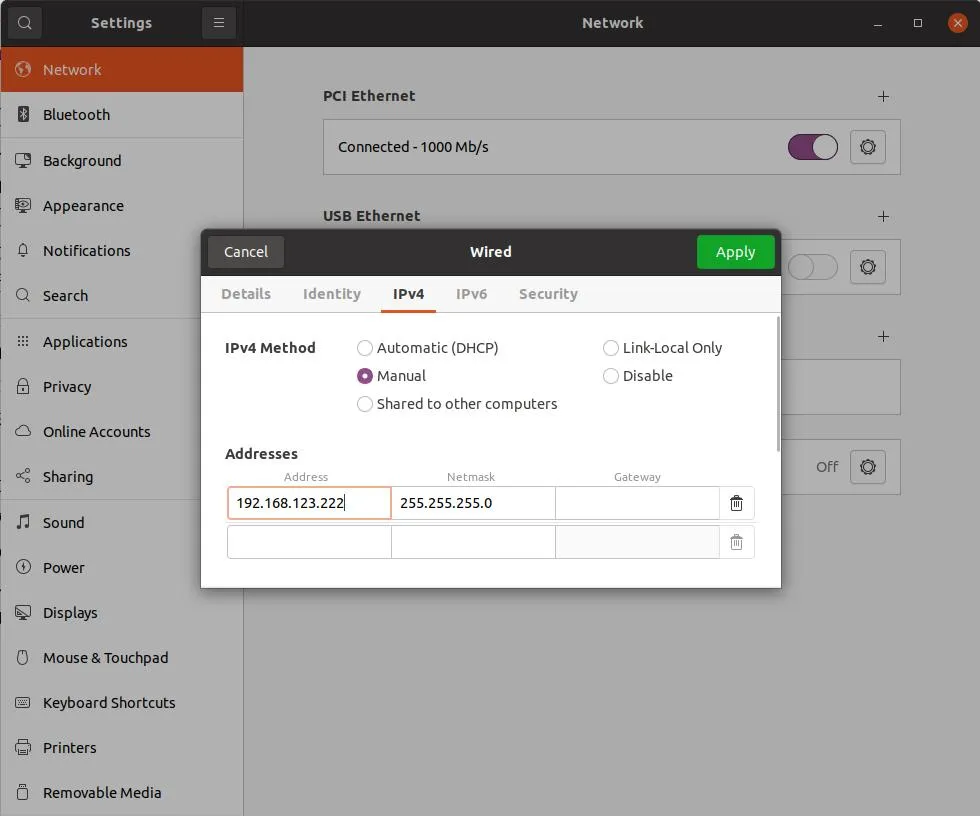
- Connect one end of a network cable to the robot and the other end to the user’s computer. Enable USB Ethernet on the computer and configure it. The robot’s onboard computer IP address is
192.168.123.161, so set the computer’s USB Ethernet address to the same subnet, such as192.168.123.222.

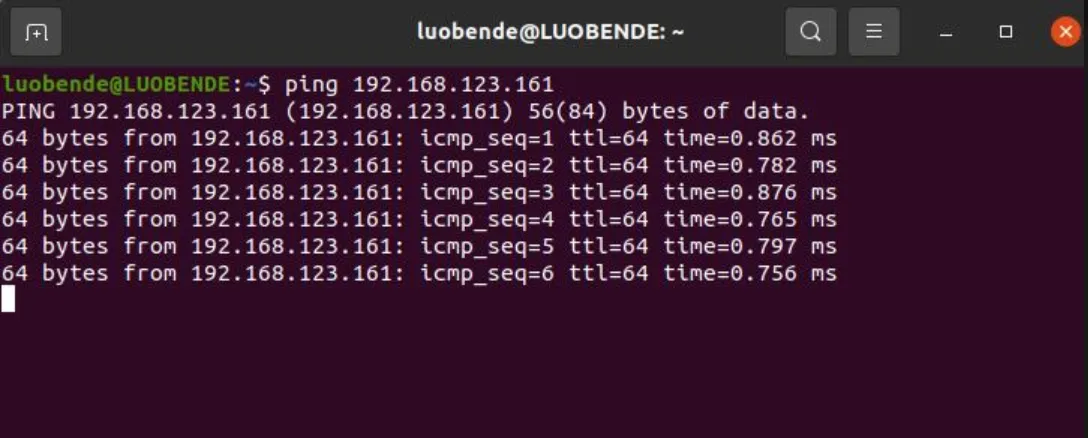
To test if the user computer and the robot’s onboard computer are properly connected, enter ping 192.168.123.161 in the terminal. A similar output to the image below indicates a successful connection.
- Identify the network card name corresponding to the 123 subnet using the
ifconfigcommand, as shown below:
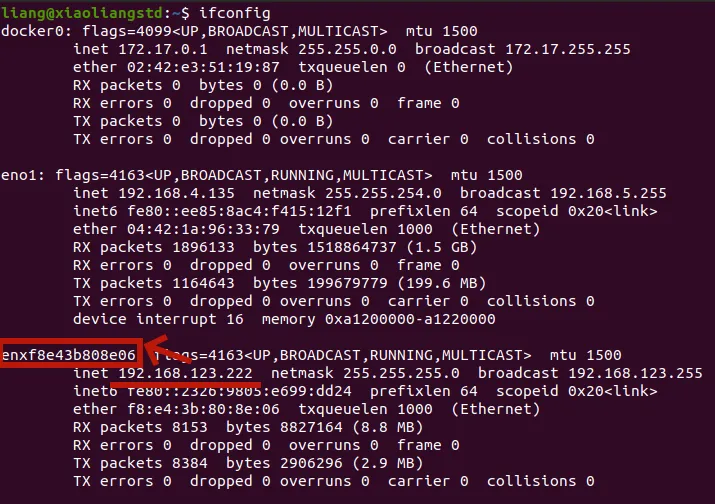
The network card name corresponding to IP 192.168.123.222 is enxf8e43b808e06. Note this name as it will be required when running examples.
Running Examples
Section titled “Running Examples”Entering Debug Mode
Section titled “Entering Debug Mode”Follow the Quick Start Guide to ensure the robot is in debug mode.
Compiling and Running the Low-Level Control Routine
Section titled “Compiling and Running the Low-Level Control Routine”Note: Running this routine will move multiple joints of the G1. To protect the robot, please suspend the robot before running this routine.
cd unitree_sdk2cmake -Bbuildcmake --build build./build/bin/g1_ankle_swing_example network_interface_nameFor more details on the routine, refer to the Basic Motion Routine.