Skip to content

FAQ

No, Jetson ORIN NX will be built into the edu version
  1. ap schema creation with create_ap,github link:https://github.com/oblique/create_ap
Terminal window
git clone https://github.com/oblique/create_ap
cd ./create_ap/
make install
  1. Install the necessary software
Terminal window
sudo apt install -y hostapd dnsmasq network-manager

Connect to the wifi, whose name is MyAccessPoint

Terminal window
create_ap wlan0 eth0 MyAccessPoint

For other specific usage methods, please refer to: https://gitcode.com/gh_mirrors/cr/create_ap/overview?utm_source=csdn_github_accelerator&isLogin=1

STA mode is a common way to configure WIFI, there are many tutorials on the Internet, the following wpa_cli as an example Enter the dedicated console and select wlan0 by default

Terminal window
wpa_cli
  1. Add a network and get the network ID
Terminal window
add_network
  1. After (1) get an ID number, let’s say ID number is 1, then connect to your wifi
Terminal window
set_network 1 ssid “your wifi name”
  1. Set a password for the WIFI connection
Terminal window
set_network 1 psk “your wifi key”
  1. Enable WIFI
Terminal window
enable_network 1
  1. Save WIFI information
Terminal window
save_config
  1. Check wifi connection status
Terminal window
status

Step 7 Quit

Terminal window
quit

Some users discovered wpa. Procedure_If the cli is unavailable, you can use the nmcli to configure WIFI access.

  1. waln0 was enabled.
sudo ifconfig wlan0 up
  1. Turn on the wireless card
sudo nmcli radio wifi on
  1. Check whether wifi is enabled
nmcli radio wifi
  1. Link wifi
nmcli device wifi connect <SSID> password <password>

After the G1 device is upgraded with the latest firmware ≥1.3.0, the Joint limt is abnormal and Transient Over Voltage is reported.

Section titled “After the G1 device is upgraded with the latest firmware ≥1.3.0, the Joint limt is abnormal and Transient Over Voltage is reported.”
The new firmware optimizes the joint calibration accuracy. The previous calibration accuracy does not meet the requirements and needs to be re-calibrated.

When the device is configuring the network, the network WiFi configuration fails.

Section titled “When the device is configuring the network, the network WiFi configuration fails.”
This problem is related to the wireless environment, especially when the exhibition and other places, the wireless environment is more complex, more interference. You can take the G1 device to a place with less interference and try a network configuration.

G1-29 DOF device, after unlocking the waist fixator (APP synchronously closes the waist lock switch), report the joint out-of-limit position error.

Section titled “G1-29 DOF device, after unlocking the waist fixator (APP synchronously closes the waist lock switch), report the joint out-of-limit position error.”
Reason: The two joint motors at the waist are not calibrated.
Solution: Re-calibration, refer to the calibration video tutorial

(Calibration(29 dof))

During calibration, the waist fixer is needed to limit the waist motor card. On the APP side, the waist motor lock switch must be off

Refer to the image restoration process

Go2 NX image recovery

If you decide not to use a personal backup system image for recovery, you can download the factory system image provided by Unitree Technology through the following link:

Terminal window
# G1 NX Factory Image Name: g1_nx_Jetpack5.1.1_20250930.img.bz2
链接: https://drive.google.com/file/d/1lpCNcFehMfyQqMlxbWg16Vt3she2y63p/view?usp=drive_link
# G1 NX Factory Image Historical Versions (Not Recommended)
链接: https://drive.google.com/file/d/13Zwgvn_ZaG_njdk1GnlSZrXRDCubmyom/view?usp=sharing
  1. Burn the image to the NVME storage device in Step 1 and run the following command:
Terminal window
# g1_nx_Jetpack5.1.1_20250930.img.bz2 is the image filename.
bzip2 -dc g1_nx_Jetpack5.1.1_20250930.img.bz2 | sudo dd of=/dev/sdc status=progress

Method for Expanding Disk Capacity After System Recovery on Jetson Orin NX

Section titled “Method for Expanding Disk Capacity After System Recovery on Jetson Orin NX”
After flashing the system, there may be cases where the recognized disk capacity appears smaller than expected. You can use the following method to expand the disk.
  1. A computer with Ubuntu system installed
  2. NVME M.2 portable hard drive enclosure

All subsequent operations should be performed on the computer running Ubuntu.

Install the required software using the following commands:

sudo apt update
sudo apt-get install gparted
  1. Launch the GParted tool by executing the following command:
sudo gparted
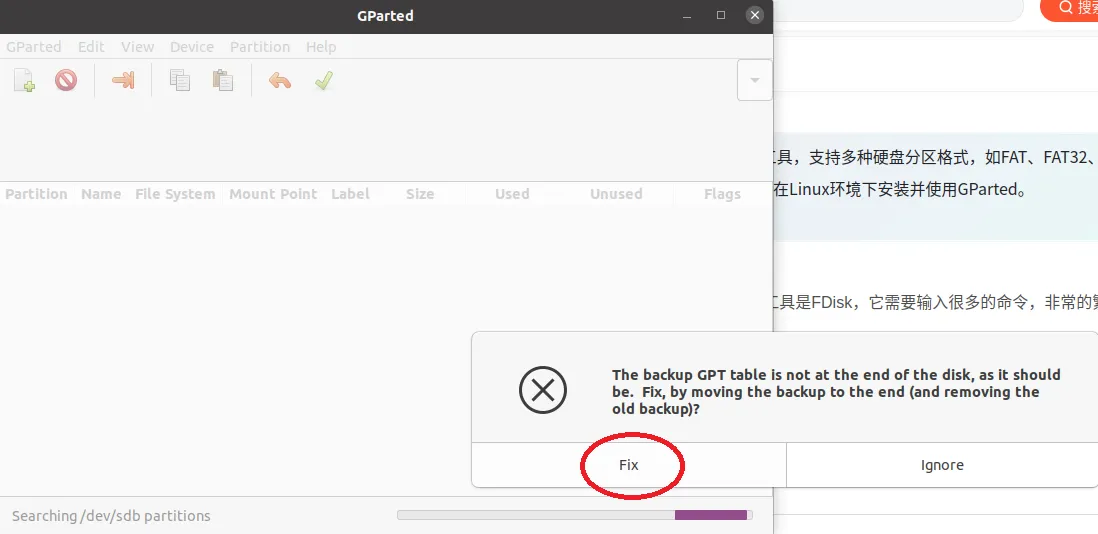
  1. In the pop-up dialog box, select the fix option as shown in the image below:

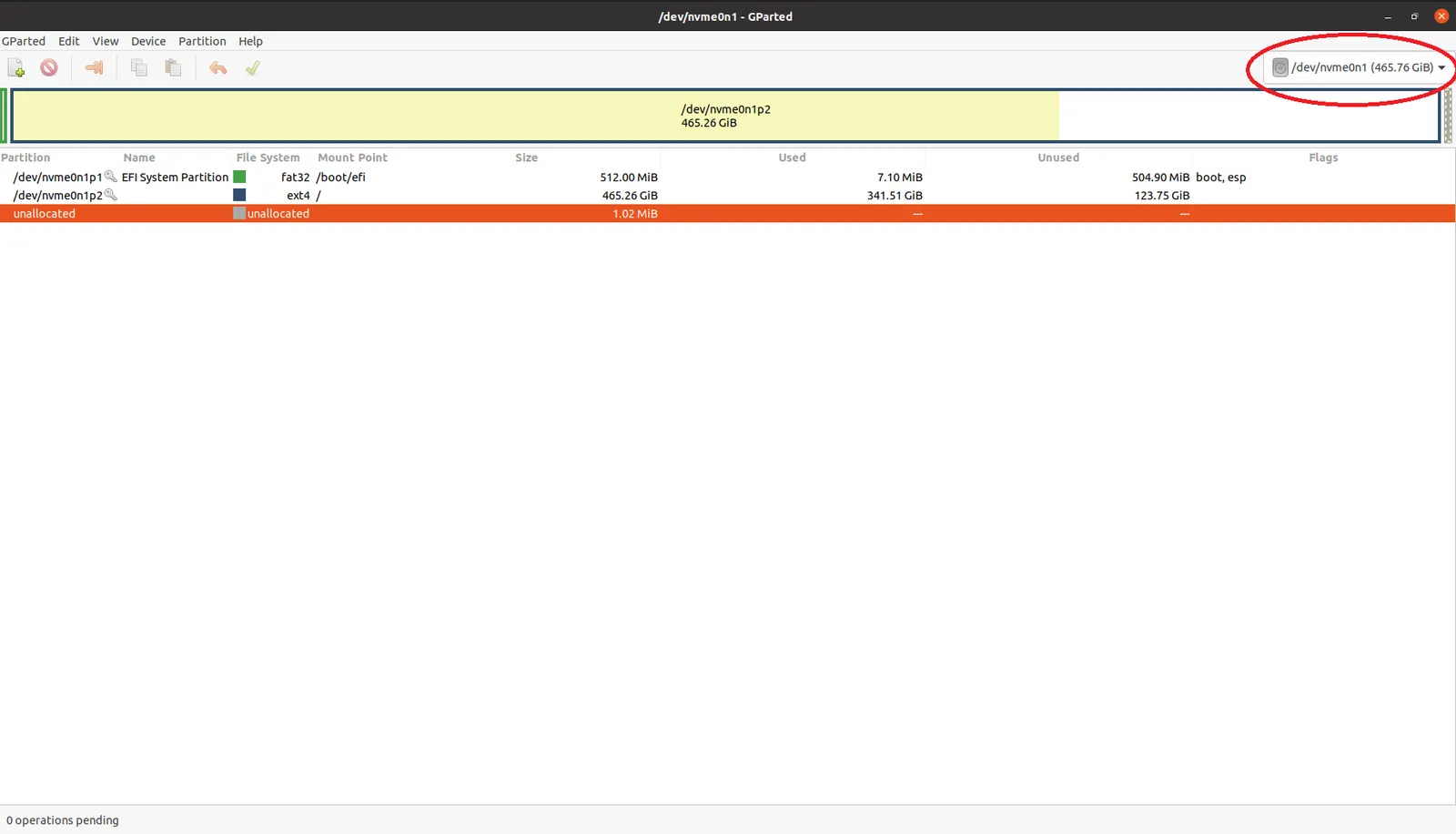
  2. Once inside the GParted interface, click on the upper right corner to switch to the target disk (choose the disk where the G1 system has been flashed), as shown below:

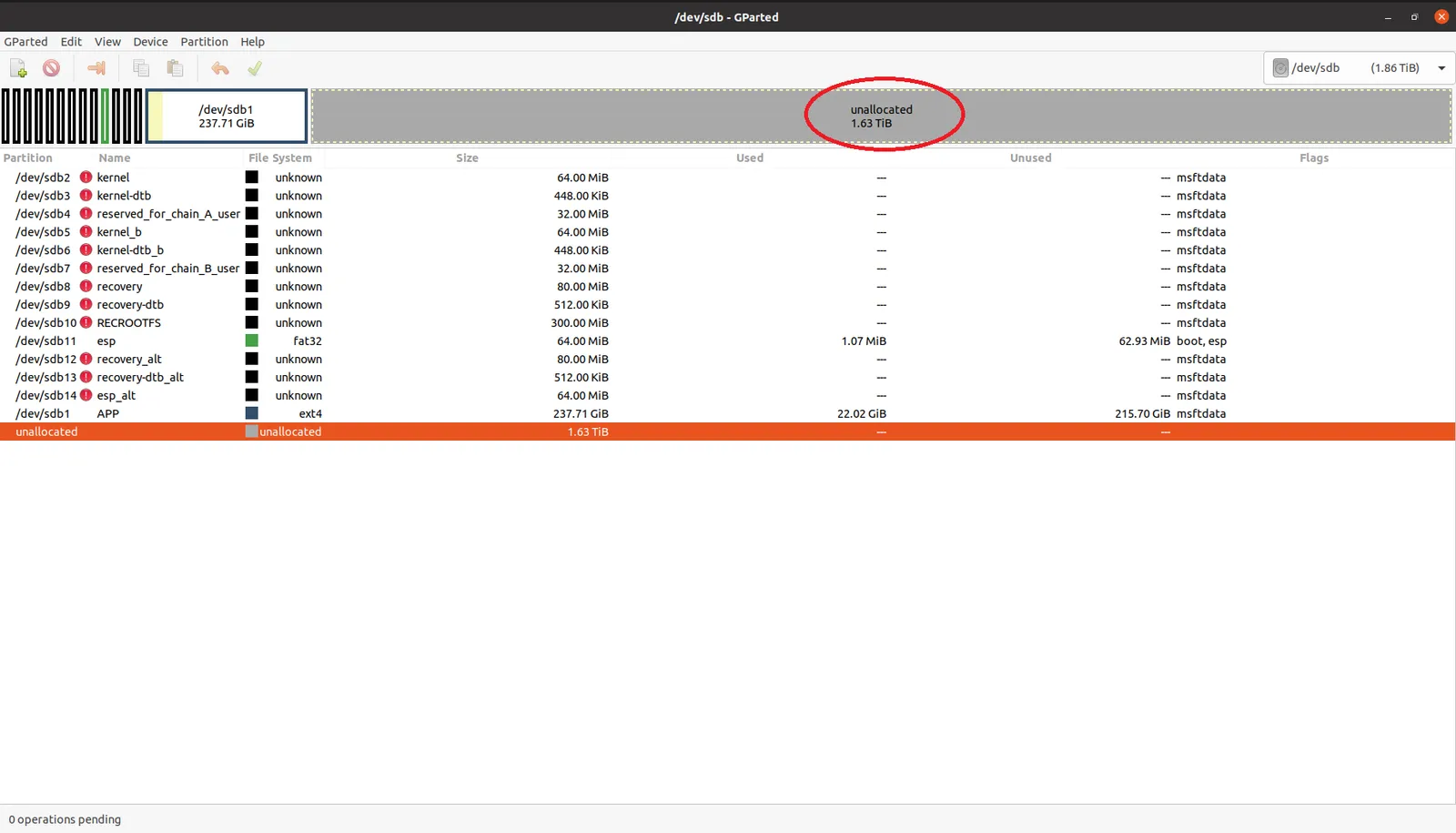
  3. After switching disks, you will see the unallocated space on the disk, as shown below:

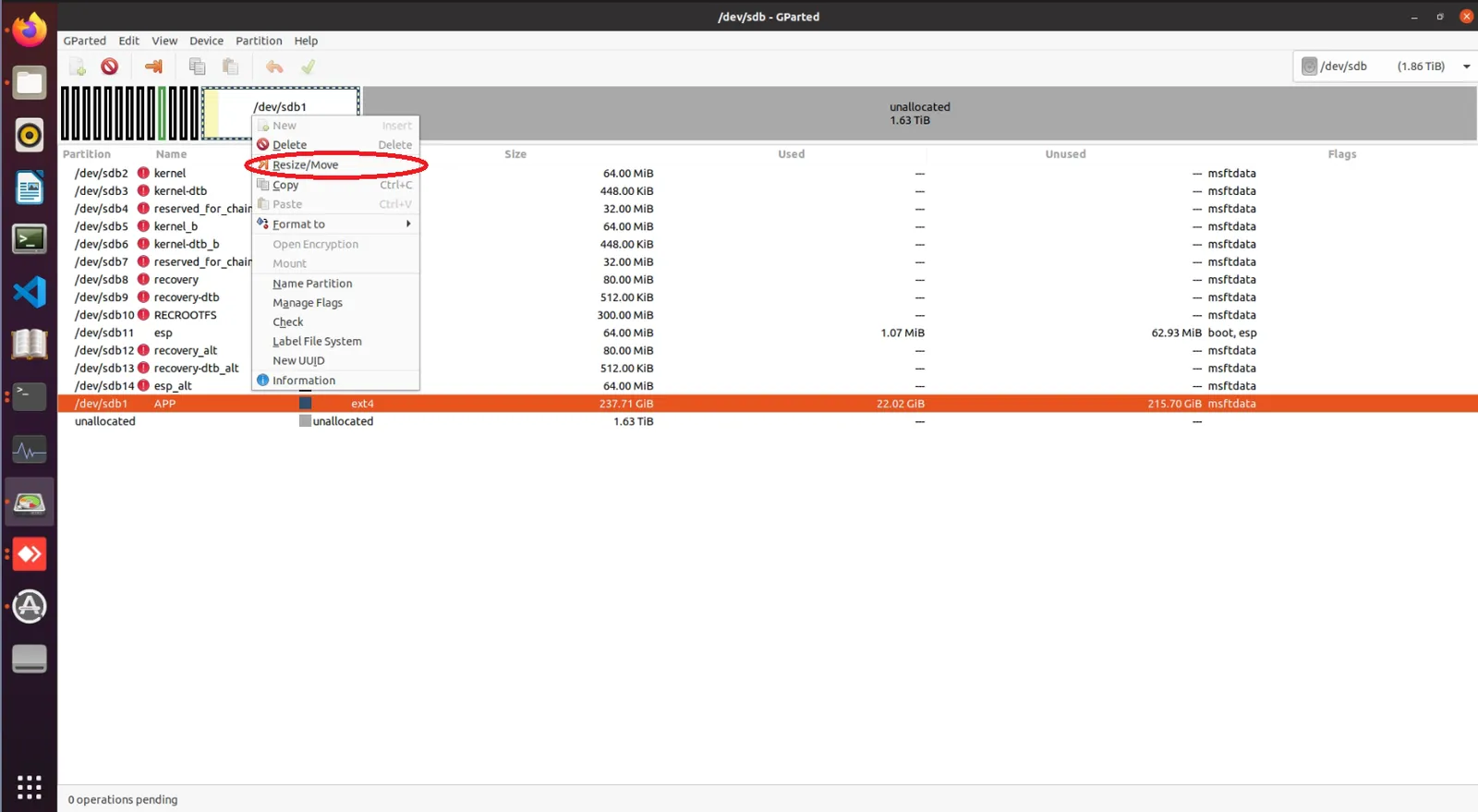
  4. Right-click on/dev/sdb1,and chooseResize/Move, as shown below:

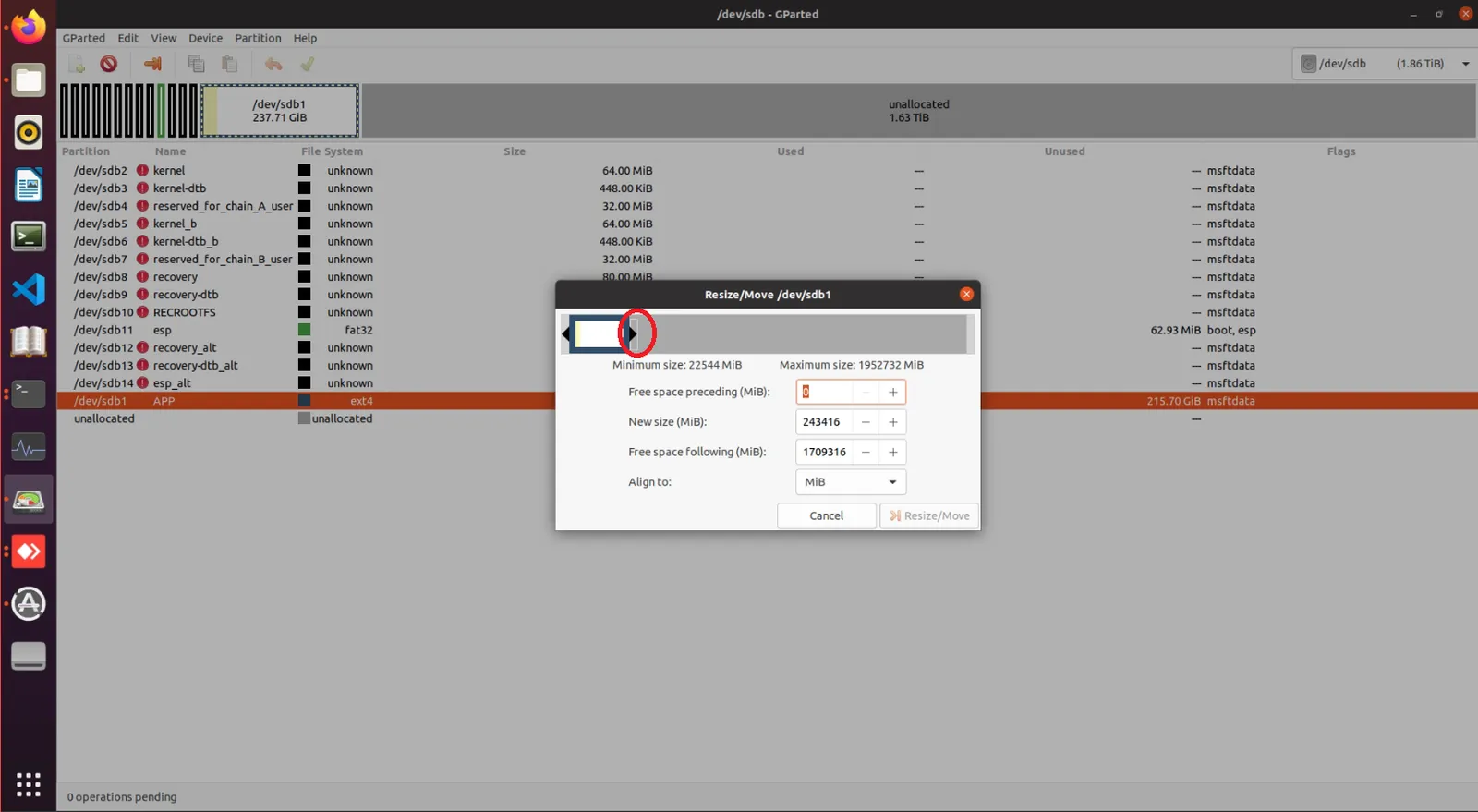
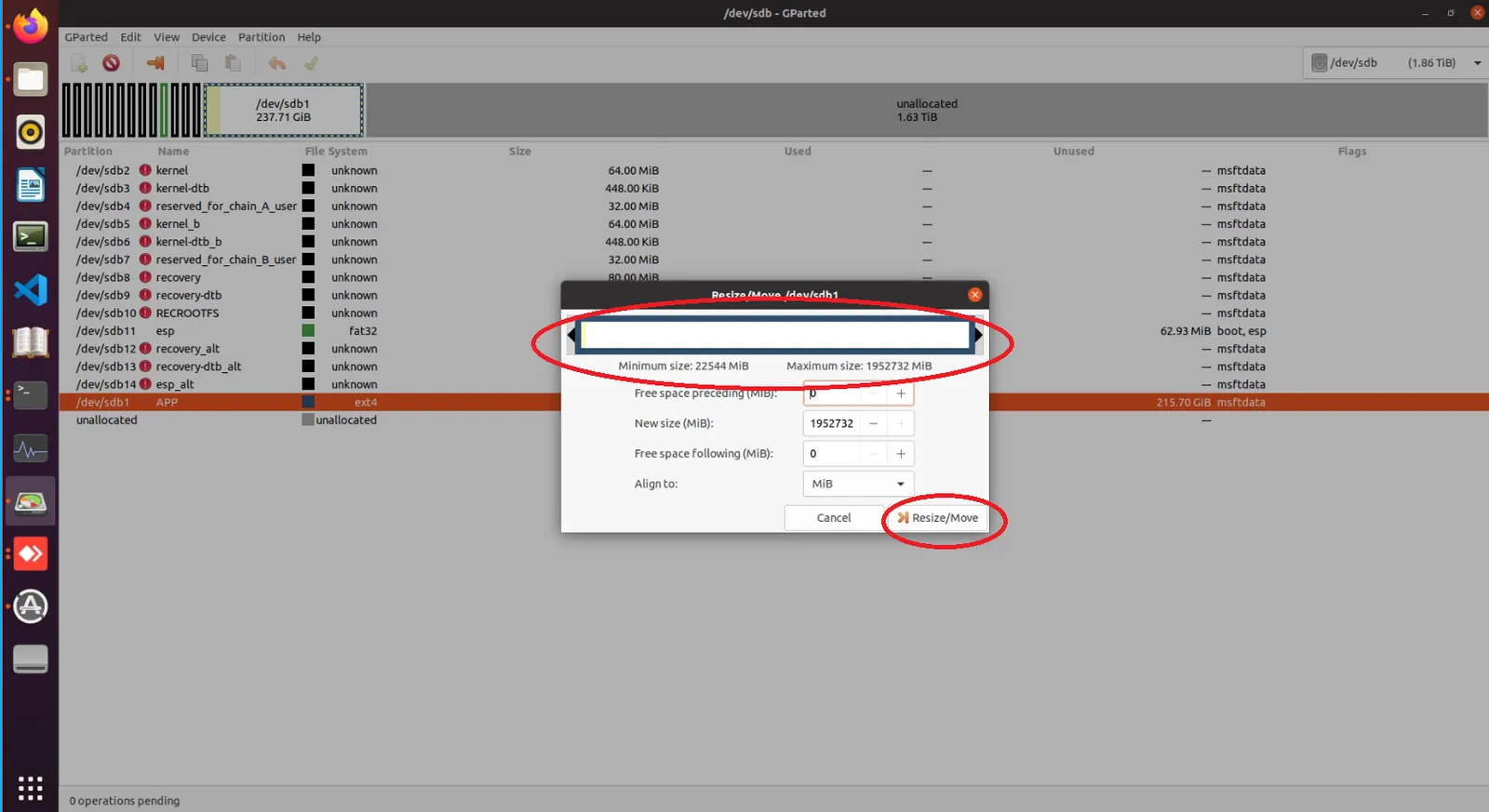
  5. Drag the red area shown in the figure below to the bottom using the left mouse button, as shown in the image:

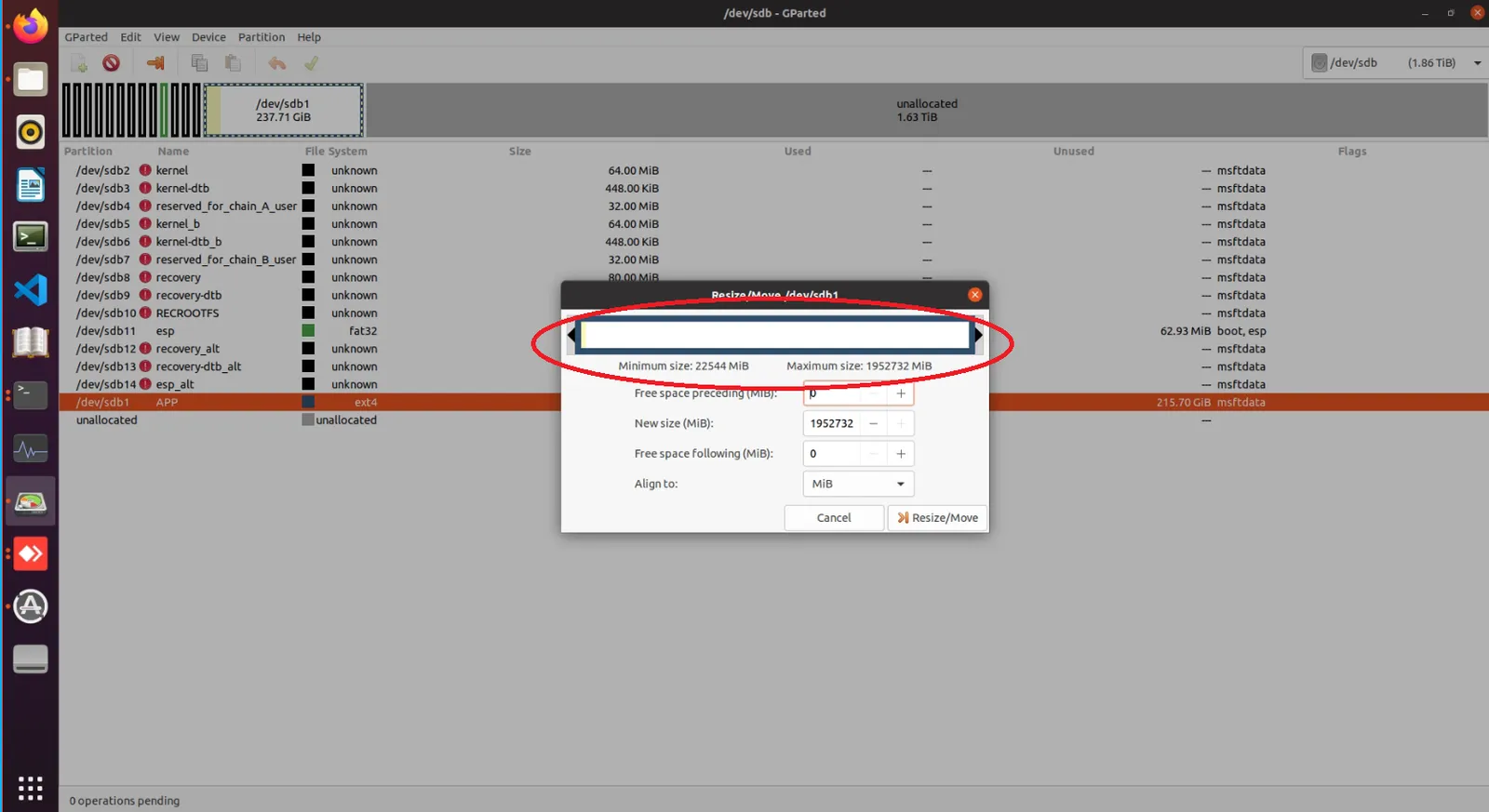
  6. After dragging, the interface will appear as shown below:

  7. Click theResize/Movebutton, as shown below:

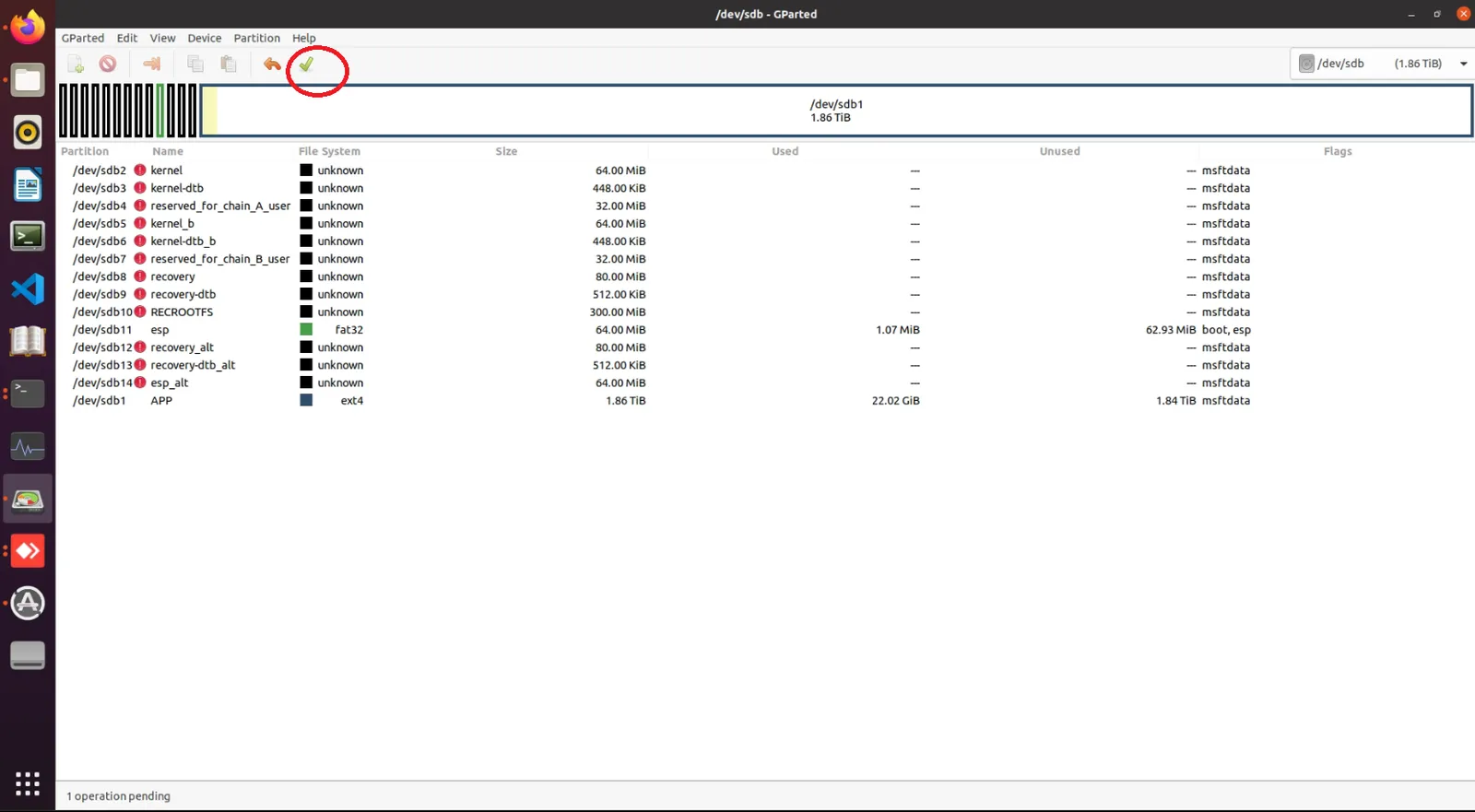
  8. After the new window appears, click the checkmark icon to apply changes, as shown below:

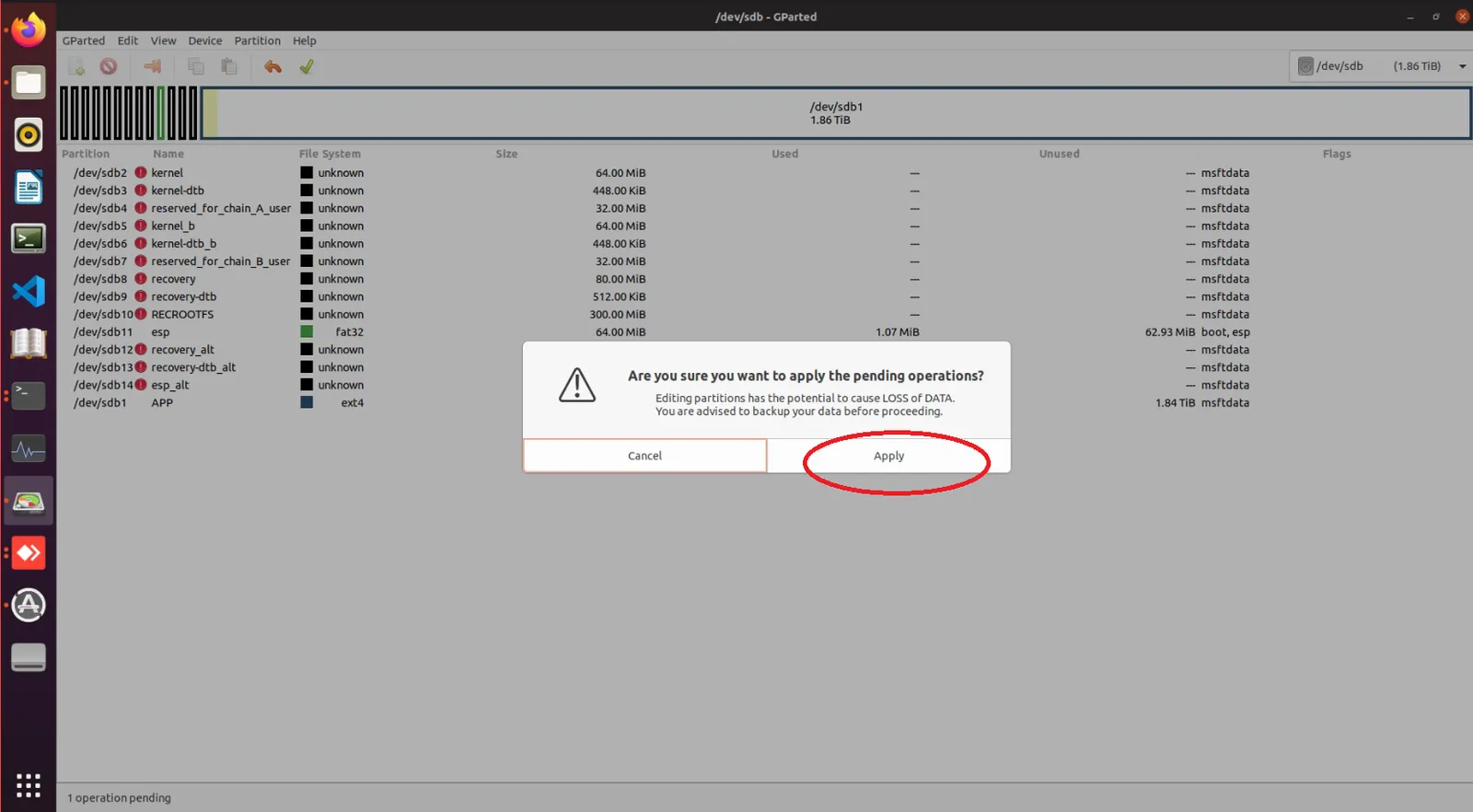
  9. In the next window, click the Apply button, as shown below:

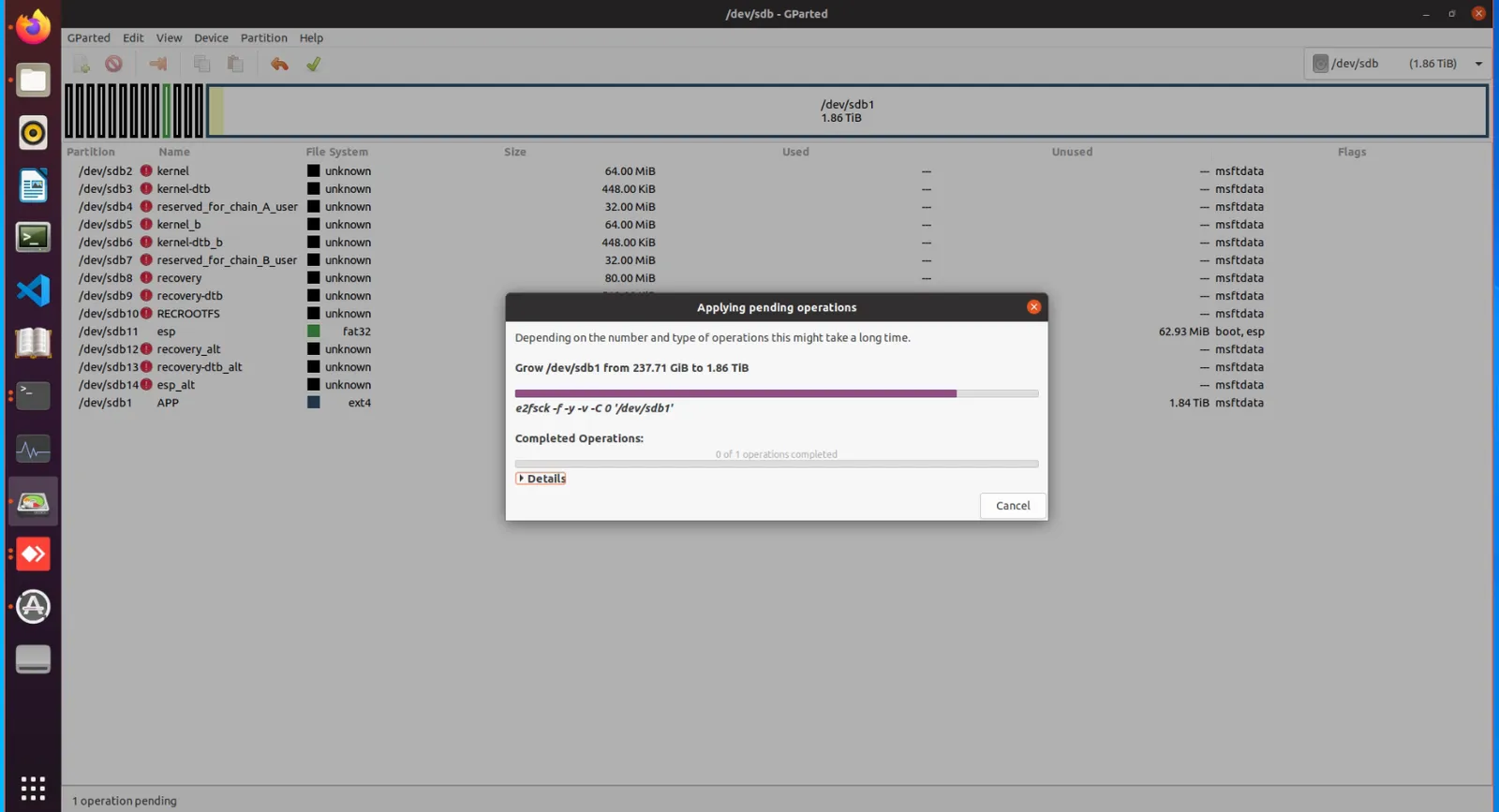
  10. Wait for the operation to complete, as shown below:

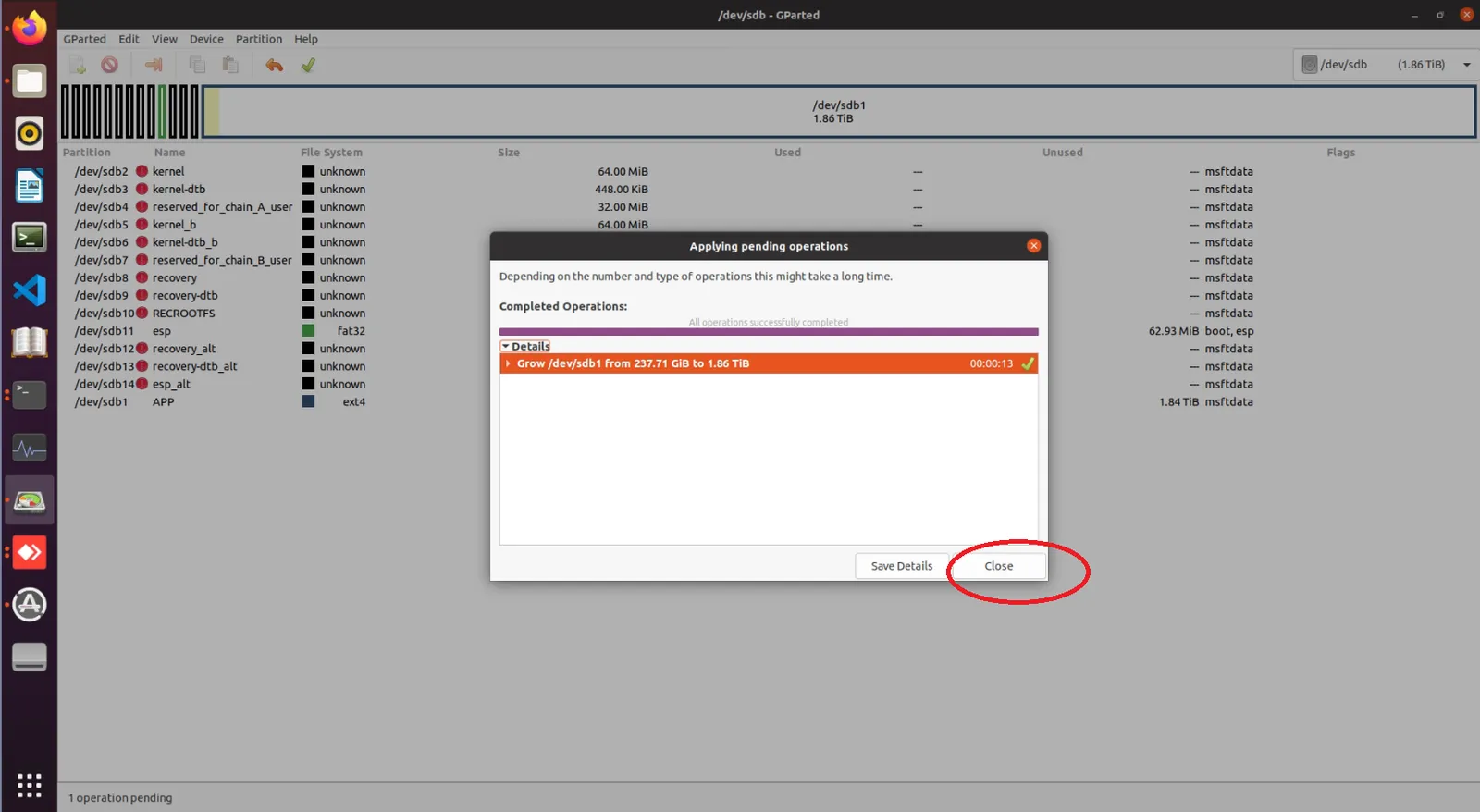
  11. Once completed, click the Close button, as shown below:

At this point, the disk expansion process for G1 is complete. You can now safely eject the disk from your PC and install it into the G1 device for normal usage.

Method for Enabling WiFi After System Recovery on Jetson Orin NX

Section titled “Method for Enabling WiFi After System Recovery on Jetson Orin NX”

Note: The g1_nx_Jetpack5.1.1_20250930.img.bz2 image already includes built-in Wi-Fi support; after flashing, there is no need to use this method to enable Wi-Fi.

Use the following commands to install the necessary software tools:
sudo apt update
sudo apt install dkms debhelper build-essential devscripts libncurses-dev flex bison libssl-dev

Download the WiFi drive .deb package: WIFI Driver Package After downloading and extracting the file, you will find a file named rtl8852bu-dkms_1.19.14_arm64.deb . Execute the following command to install the driver:

sudo dpkg -i ./rtl8852bu-dkms_1.19.14_arm64.deb

Note: The installation of the WiFi driver may take a while, please wait patiently. It usually takes around 20~30 minutes. To monitor its progress, you can use the following command:

Terminal window
sudo tail -f /var/lib/dkms/rtl8852bu/1.19.14/build/make.log

After the installation completes, restart the system using the following command:

sudo reboot

After rebooting, use the following command to verify whether the WiFi driver was successfully loaded:

ifconfig -a

If the output includes content similar to the following, the driver installation was successful:

unitree@ubuntu:~$ ifconfig -a
...
...
wlan0: flags=4098<BROADCAST,MULTICAST> mtu 1500
ether fc:23:cd:8f:6f:f3 txqueuelen 1000 (Ethernet)
RX packets 0 bytes 0 (0.0 B)
RX errors 0 dropped 0 overruns 0 frame 0
TX packets 0 bytes 0 (0.0 B)
TX errors 0 dropped 0 overruns 0 carrier 0 collisions 0

Regarding the issue of the Go interface being unable to preview video streams for depth cameras connected to the NX development board EDU+ device

Section titled “Regarding the issue of the Go interface being unable to preview video streams for depth cameras connected to the NX development board EDU+ device”
This is caused by missing essential patch files on the NX board. To resolve this, upgrade the NX board with the required patch files using the following steps:

NX System Patch

  1. Copy the compressed file to the NX board (IP: 192.168.123.164, Username: unitree, Password: 123):
scp ./g1plus_pc4_unitree_install.zip unitree@192.168.123.164:~/
  1. SSH into the NX board (IP: 192.168.123.164, Username: unitree, Password: 123):
ssh unitree@192.168.123.164
  1. Switch to root privileges (Password: 123):
sudo su root
  1. Unzip the g1plus_pc4_unitree_install.zip file:
unzip g1plus_pc4_unitree_install.zip
  1. Navigate to the g1plus_pc4_unitree_install directory and execute the installation script:
chmod -R 777 /home/unitree/g1plus_pc4_unitree_install
cd /home/unitree/g1plus_pc4_unitree_install/
rm /unitree/ -rf
./install
  1. Verify successful installation by checking if the master_service process is running via the ps command:
ps -ef | grep "master_service" | grep -v grep

After completing the above steps, contact technical support to:

  • Update the Patch PC4 and Video Hub PC4 components to the latest versions.
  • Restart the device.

!https://doc-cdn.unitree.com/static/2025/8/25/946f900a5d5644d192a4b7f917970bb4_2672x1892.jpeg

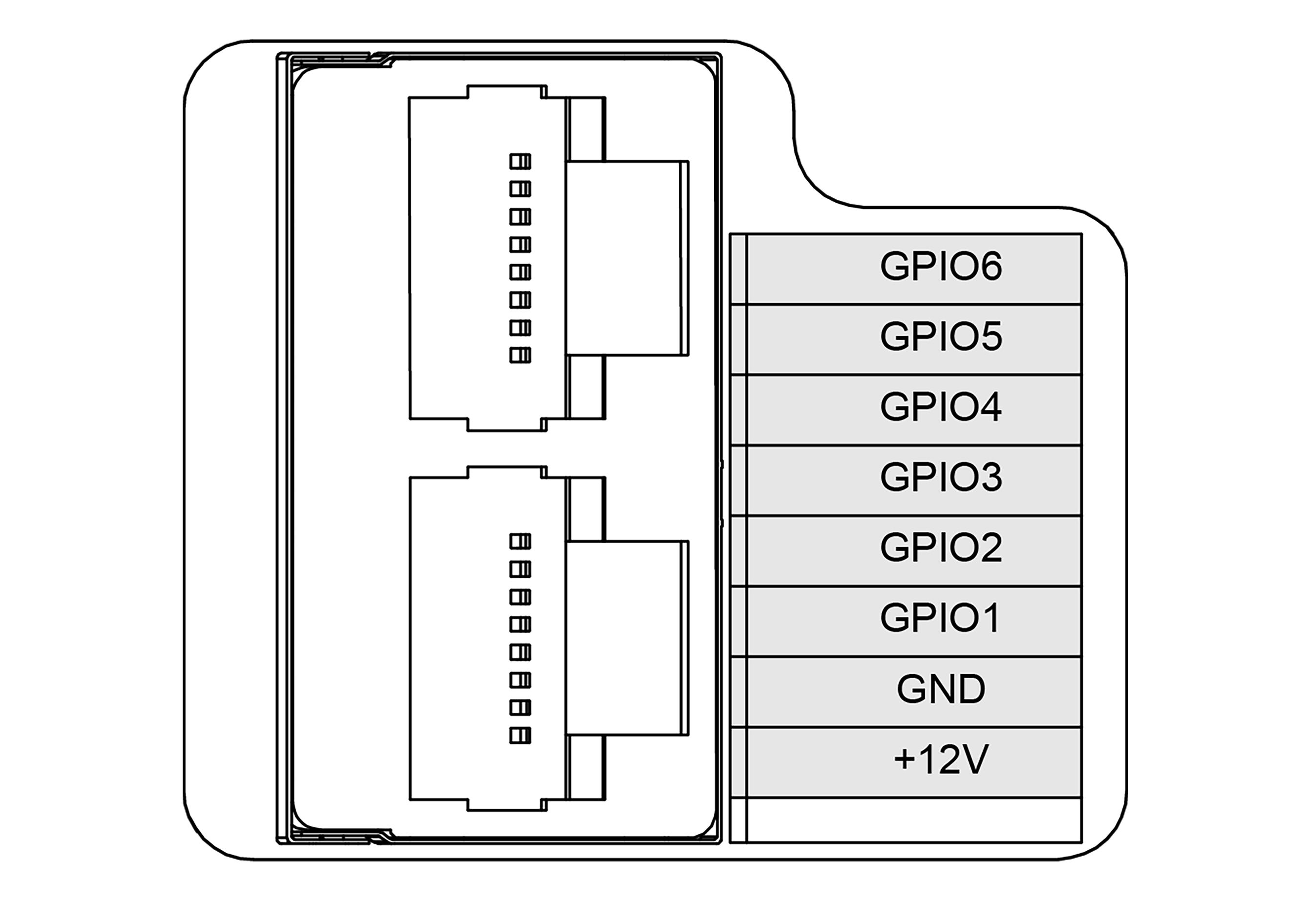
GPIO Number Function
GPIO1 UART_TXD
GPIO2 UART_RXD
GPIO3 I2C_SCL
GPIO4 I2C_SDA
GPIO5 GPIO
GPIO6 GPIO

Serial port parameters: Baud rate 9600, 8 data bits, no parity, 1 stop bit.
After the G1 system starts, GPIO1 and GPIO2 are configured for UART functionality. They can be used simply with the following methods:

Terminal window
# Serial output: test
echo "test" > /dev/ttyTHS0
# View data received by the serial port
cat /dev/ttyTHS0

After the G1 system starts, GPIO3 and GPIO4 are configured for I2C functionality.
When an I2C device is connected to the corresponding pins, the following command can be used to detect the device:

Terminal window
root@ubuntu:/home/unitree# i2cdetect -y -r 0
0 1 2 3 4 5 6 7 8 9 a b c d e f
00: -- -- -- -- -- -- -- -- -- -- -- -- --
10: -- -- -- -- -- -- -- -- -- -- -- -- -- -- -- --
20: -- -- -- -- -- -- -- -- -- -- -- -- -- -- -- --
30: -- -- -- -- -- -- -- -- -- -- -- -- -- -- -- --
40: -- -- -- -- -- -- -- -- -- -- -- -- -- -- -- --
50: 50 -- -- -- -- -- -- -- -- -- -- -- -- -- -- --
60: -- -- -- -- -- -- -- -- -- -- -- -- -- -- -- --
70: -- -- -- -- -- -- -- --

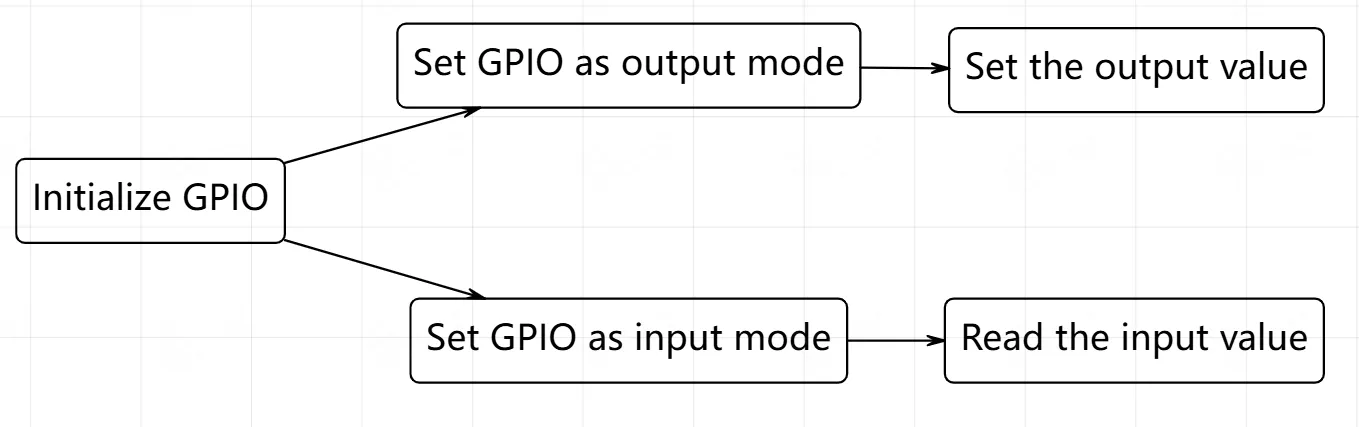
After the G1-NX system starts, GPIO5 and GPIO6 are configured for GPIO functionality and can be used with the following methods:

Note: When using, switch to root with the following command:

Terminal window
su root

Expose the GPIO from kernel space to user space:

Terminal window
# Export GPIO5 (number 330)
echo 330 > /sys/class/gpio/export
# Export GPIO6 (number 331)
echo 331 > /sys/class/gpio/export

Used to control external devices, such as LEDs, relays, etc.:

Terminal window
# Set GPIO5 as output
echo out > /sys/class/gpio/PCC.02/direction
# Set GPIO6 as output
echo out > /sys/class/gpio/PCC.03/direction

Control GPIO to output high level (3.3V) or low level (0V):

Terminal window
# GPIO5 outputs high level
echo 1 > /sys/class/gpio/PCC.02/value
# GPIO5 outputs low level
echo 0 > /sys/class/gpio/PCC.02/value
# GPIO6 outputs high level
echo 1 > /sys/class/gpio/PCC.03/value
# GPIO6 outputs low level
echo 0 > /sys/class/gpio/PCC.03/value

If GPIO needs to be used as an input, use the following method:

Terminal window
# Set GPIO5 to input mode
echo in > /sys/class/gpio/PCC.02/direction
# Set GPIO6 to input mode
echo in > /sys/class/gpio/PCC.03/direction

When GPIO is set to input mode, the external input level can be read:

Terminal window
# Read the input level of GPIO5 (0 for low level, 1 for high level)
cat /sys/class/gpio/PCC.02/value
# Read the input level of GPIO6
cat /sys/class/gpio/PCC.03/value
Check Current GPIO Direction (Input / Output)
Section titled “Check Current GPIO Direction (Input / Output)”

Check whether the GPIO is currently in input or output mode:

Terminal window
# Check the direction of GPIO5
cat /sys/class/gpio/PCC.02/direction
# Check the direction of GPIO6
cat /sys/极class/gpio/PCC.03/direction

When GPIO is no longer in use, it needs to be unexported to release resources:

Terminal window
# Unexport GPIO5 (corresponding number 330)
echo 330 > /sys/class/gpio/unexport
# Unexport GPIO6 (corresponding number 331)
echo 331 > /sys/class/gpio/unexport

First, connect to the network and install gpiod. This method does not require logging in as root.

Terminal window
sudo apt install gpiod

The mapping relationship for G1’s GPIO in Libgpiod is:

GPIO sysfs Libgpiod
GPIO5 PCC.02 gpiochip 1 14
GPIO6 PCC.03 gpiochip 1 15

The G1 has two GPIO chips in total. GPIO5 and GPIO6 are on chip 1, while the others are on chip 0. Use gpiodetect to view the current number of chips and their names, and use gpioinfo [chip number] to view the IO port mapping names and status for the corresponding chip.

Libgpiod automatically handles the enable state. Use the command gpioset gpiochip[chip number] [pin mapping number]=[level] to set the GPIO pin to output mode and specify the level.

Terminal window
gpioset gpiochip1 14=0
gpioset gpiochip1 14=1

Libgpiod automatically handles the enable state. Use the command gpioget gpiochip[chip number] [pin mapping number] to set the GPIO pin to input mode and read the level.
Terminal window
gpioget gpiochip1 14

Effect:

Please refer Help Center